
Installing RedactIt
RedactIt installs in a few clicks and runs entirely on your own computer. The whole process takes about a minute — here it is, step by step.
Step 1 — Open the installer
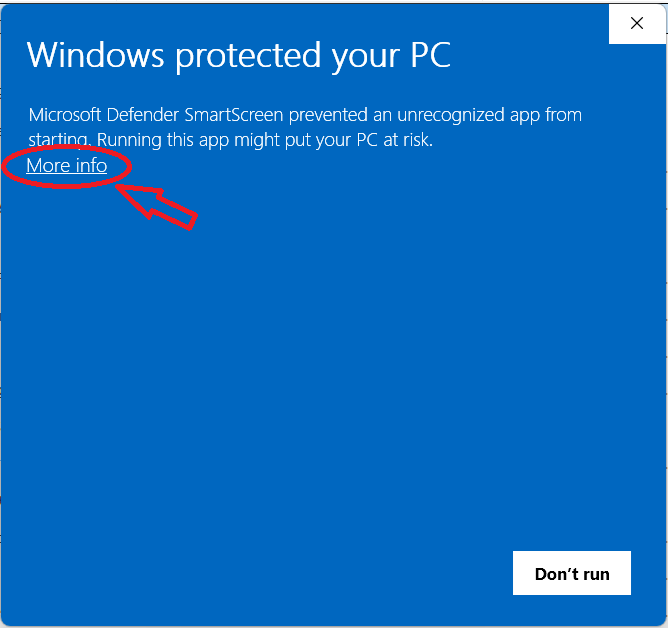
Open the file you downloaded (RedactIt-Setup-1.0.1.exe). If Windows shows the blue "Windows protected your PC" screen, click More info — not "Don't run".
Step 2 — Check the publisher, then Run anyway
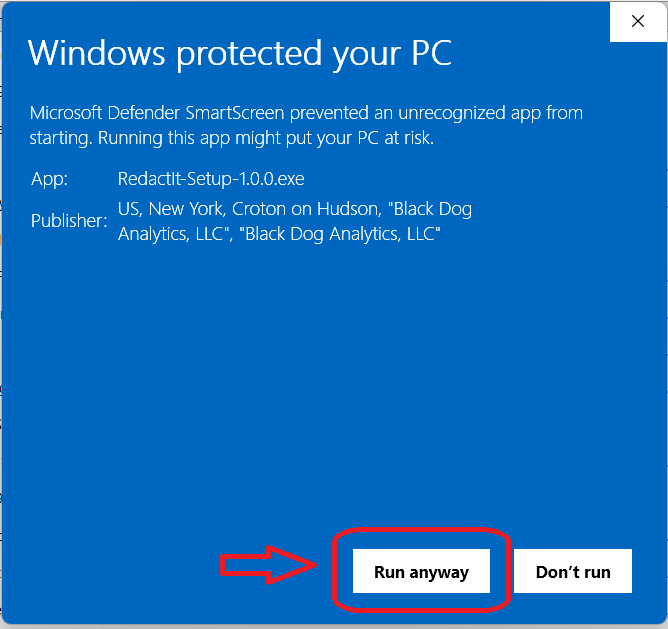
The screen expands to show the file and who signed it. Confirm it reads Publisher: Black Dog Analytics, LLC — that's our code-signing certificate, which proves the installer really is from us and hasn't been altered. Then click Run anyway.
Step 3 — Accept the license agreement
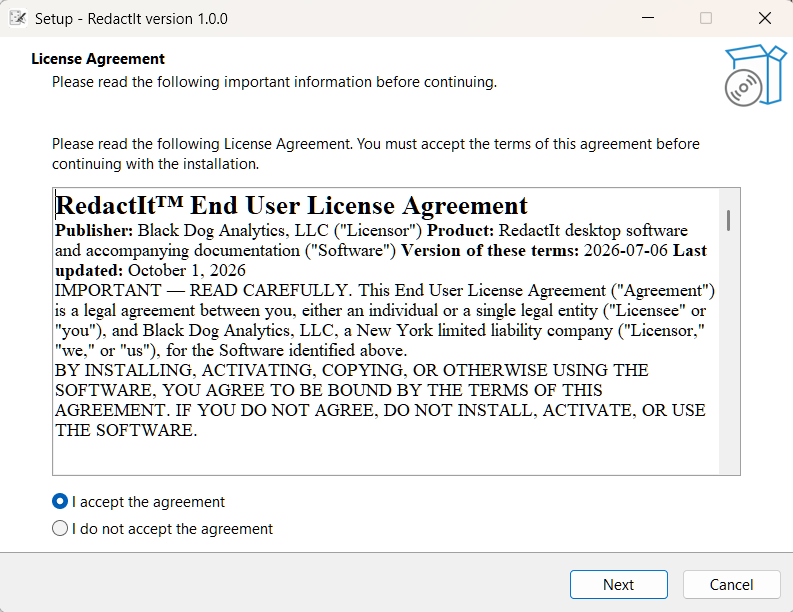
Read the End User License Agreement, choose I accept the agreement, and click Next.
Step 4 — Choose where to install
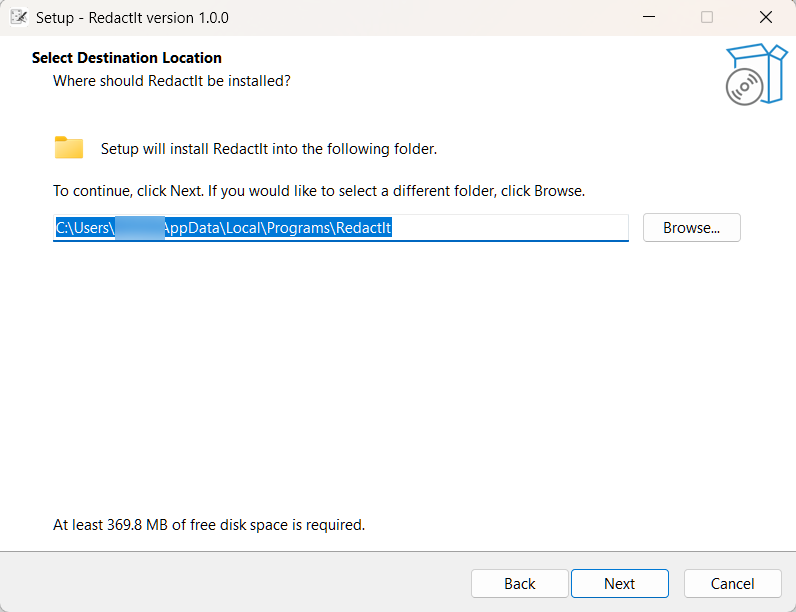
RedactIt installs just for your account, so it needs no administrator password. The default location is right for almost everyone — simply click Next. (Use Browse only if you want a different folder.)
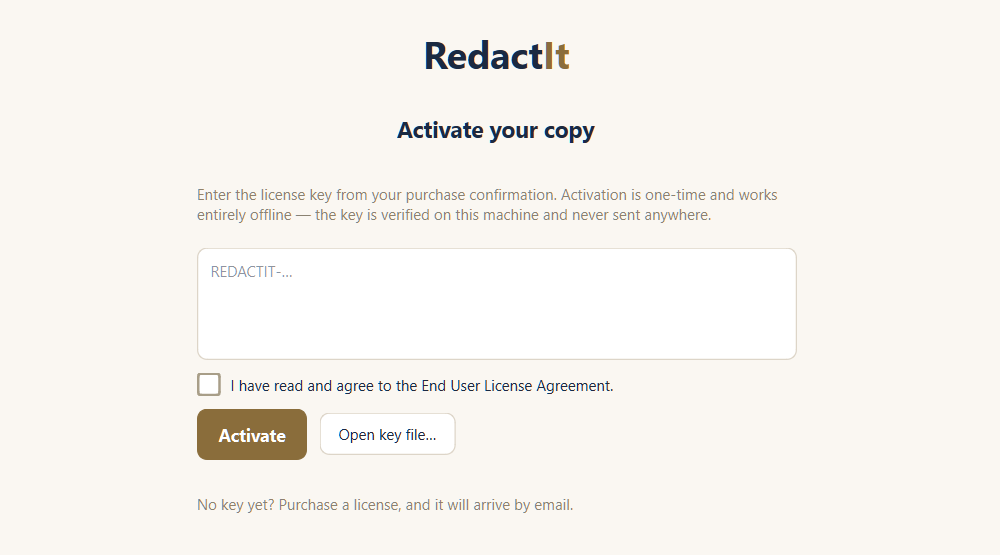
Step 5 — Activate with your key
When installation finishes, RedactIt opens to its activation screen. Paste the license key from your purchase or trial email into the box, check I have read and agree to the End User License Agreement, and click Activate. Activation is one-time and works entirely offline — your key is verified on your own computer and never sent anywhere.
Already installed RedactIt from a trial and just purchased a license? You don't need to reinstall — open RedactIt and choose About → Enter license key… to enter your new key.
Trouble installing? Contact us and we'll help.